Recommended (optional): add
wss://strfry.bonsai.com to your DM inbox relay list.
This is the relay that Plover uses itself, so adding it can ensure
reliability — but any suitable relay(s) will do.
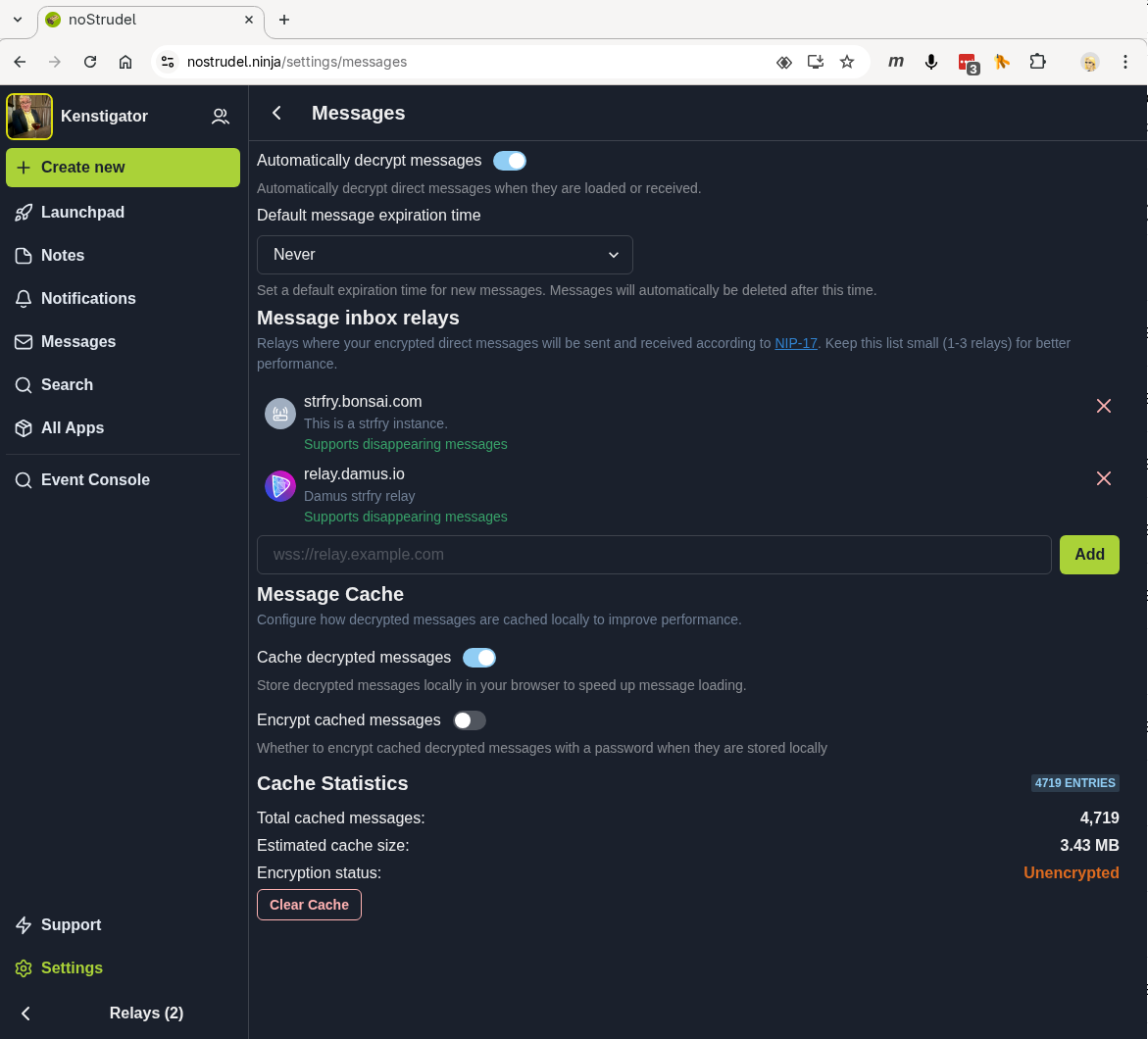
Confirm at least one relay is listed. Optional: add
wss://strfry.bonsai.com for improved reliability with Plover.
Set the message expiration to a concrete value (e.g.
1 year). Nostrudel's default leaves this empty, which
Plover's relay rejects — your DMs will silently fail to send until
this is set. This step is required for Nostrudel users.
Save / publish. Nostrudel publishes your kind:10050 event automatically.
Amethyst (Android)
Open Amethyst and log in.
Tap your profile picture (top-left) to open the side menu, then tap Settings.
Go to Relay Settings.
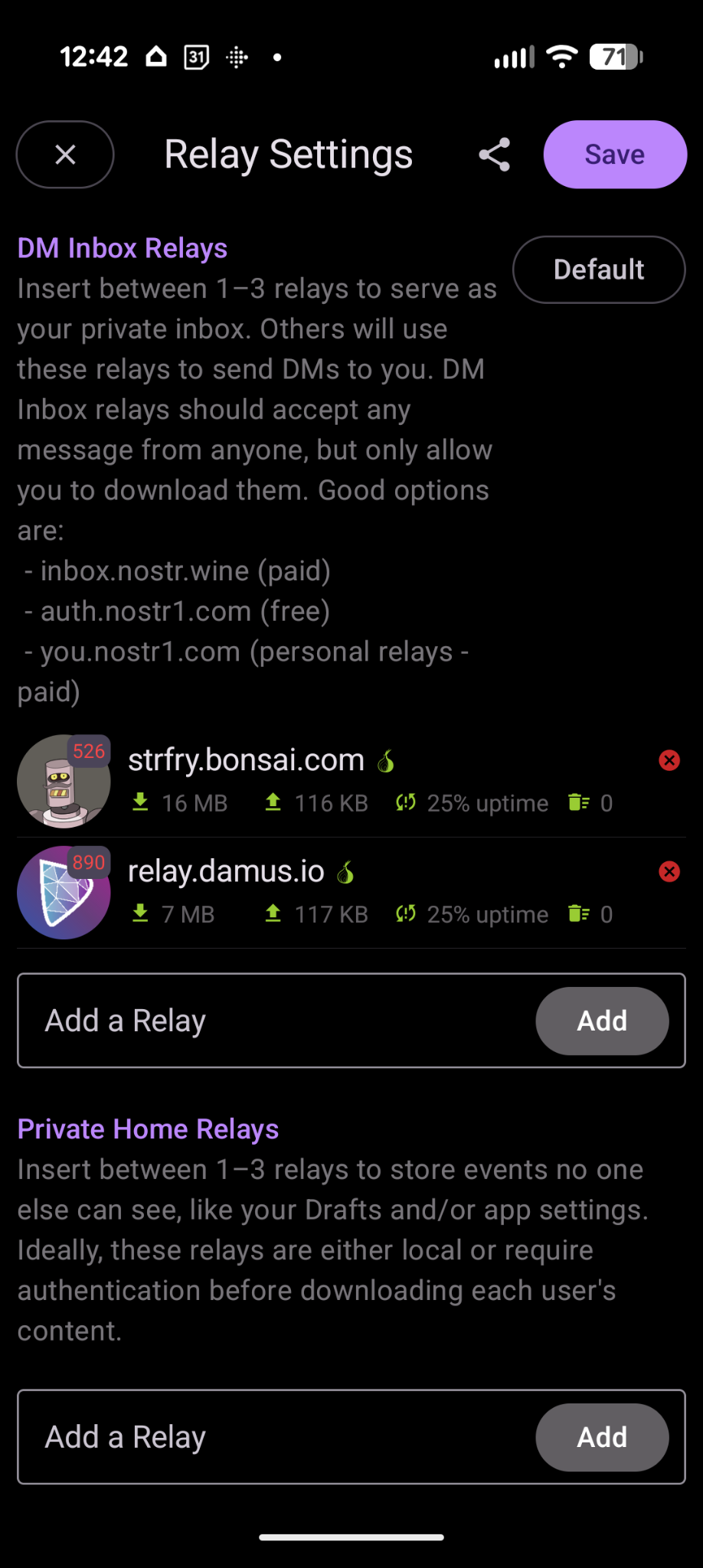
Find the DM Inbox Relays section at the top of the screen.
Confirm at least one relay is listed. Optional: add
wss://strfry.bonsai.com for improved reliability with Plover.
Tap Save (top-right) to publish.
Yakihonne (iPhone)
Open Yakihonne and log in.
Tap the Settings icon (gear, usually bottom or top-right).
Find the Relays section.
Locate the DM Inbox (or Private Inbox) list.
Confirm at least one relay is listed. Optional: add
wss://strfry.bonsai.com for improved reliability with Plover.
Are you an iPhone user? Send me a screenshot of your DM inbox setup screen and I'll add it here.
Gossip (Desktop)
Open Gossip and log in.
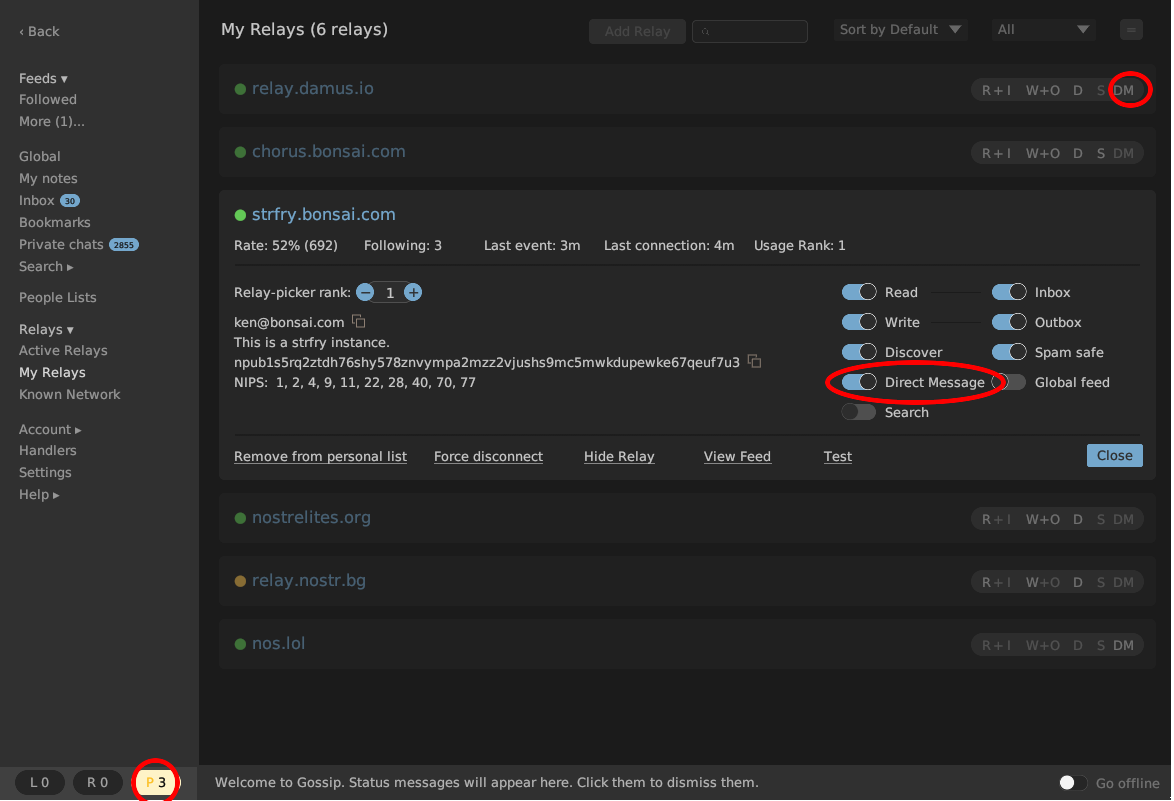
From the left sidebar, open Relays → My Relays.
Each relay row shows a quick-attribute summary on the right
(R+I, W+O, D, S,
DM). The DM letters indicate a relay is
enabled as a DM inbox. Confirm at least one of your relays has
DM highlighted.
To enable DM on a relay, click the relay row to expand it and
toggle Direct Message on. Optional: add
wss://strfry.bonsai.com if it isn't in your list and
enable Direct Message there.
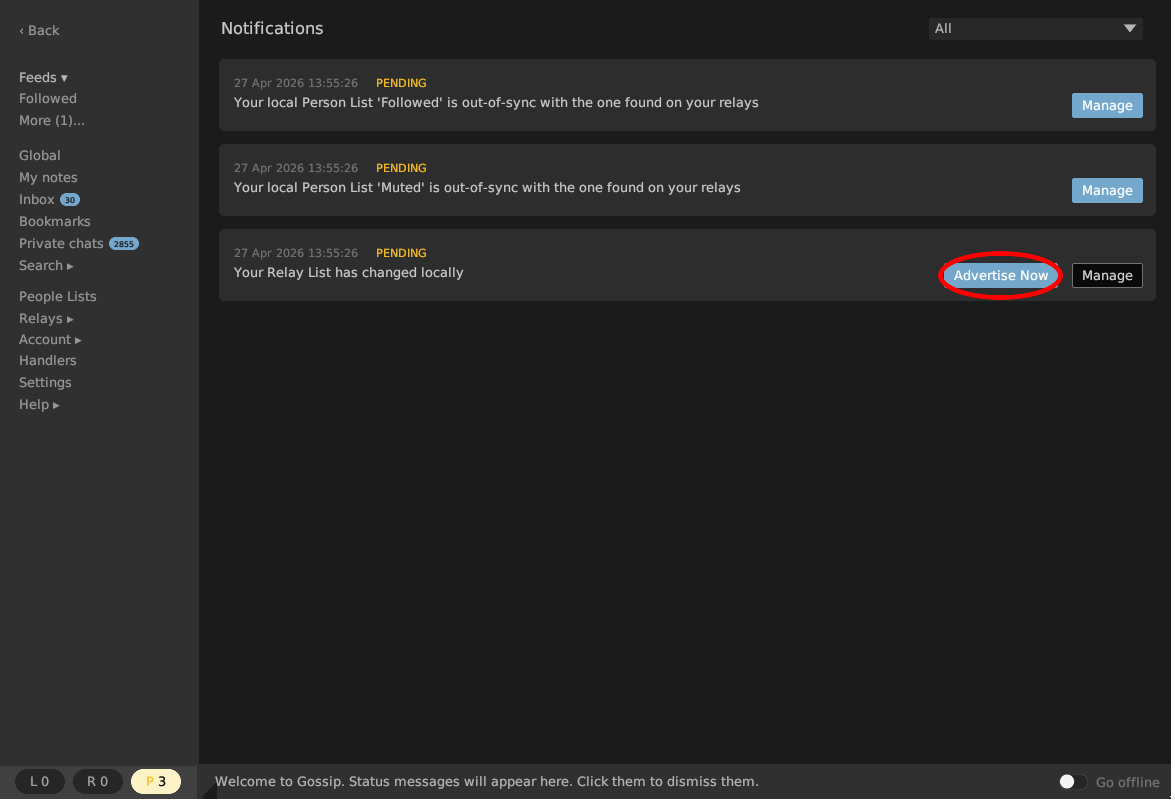
After making any changes, click the P button in the
lower-left status bar. A notifications panel opens.
Find the "Your Relay List has changed locally" entry and
click Advertise Now to publish your updated
relay list.
Why this is needed
Plover sends private direct messages using the modern Nostr DM
standard (NIP-17, gift-wrapped). NIP-17 looks for a recipient's DMs
at the relays they advertise in their NIP-65 DM inbox
list (event kind 10050). If your inbox list is empty, Plover
will receive your messages but its replies won't reach you.
Most clients set this up automatically when you create an account.
The per-client steps above are mostly about confirming what's already
there and optionally adding the relay Plover uses for extra
reliability.
Troubleshooting
Plover received my message but I never got a reply. Most
common cause: your DM inbox relay list is empty, or only contains
relays Plover can't reach. Confirm at least one relay is set; if it's
already set and replies still aren't arriving, try adding
wss://strfry.bonsai.com as well.
I can DM other people fine. Other clients may use
the older NIP-04 DM standard which doesn't need the inbox relay list.
Plover only uses NIP-17, so the list still has to be set up even if
your other DMs work.
I added the relay but it still doesn't work. Make
sure your client actually published the kind:10050 event after
the change. Some clients save settings locally but don't push to relays
until you take an explicit "save" or "publish" action.